

Plans
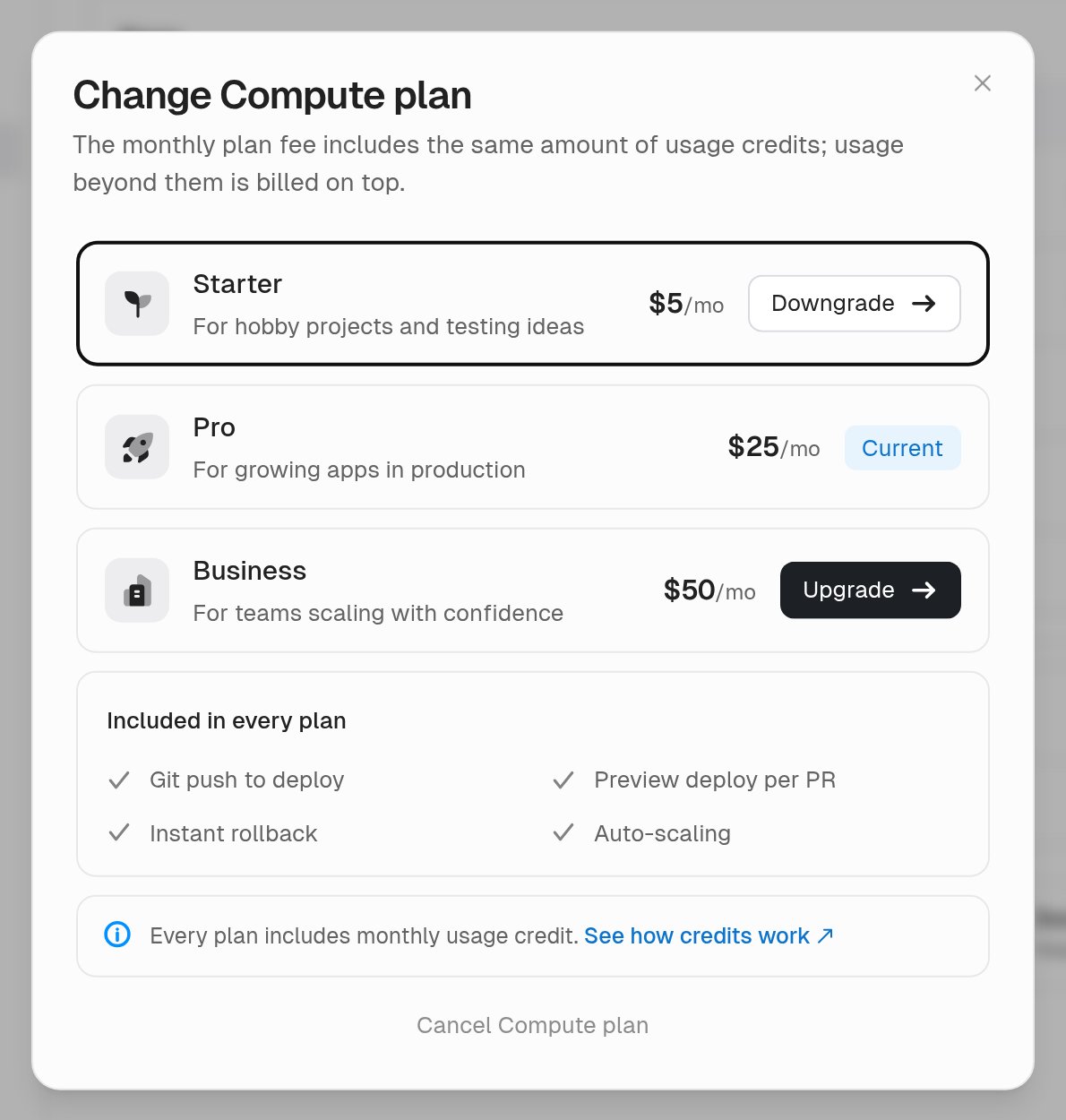
You need a Compute plan to create projects and deploy. All plans use the same usage rates. A higher plan costs more, includes more credit, and raises the limits on your instances.
See Limits for the full list and unkey.com/pricing for current prices.
How the bill works
Each month you pay the plan fee up front. Unkey grants the same dollar amount as usage credit for that month. Usage is metered as your workloads run, and at the end of the month the credit is subtracted. Whatever remains is the overage. Some examples on the Pro plan:
Stay within the credit and the fee is all you pay. Credit that you don’t use expires with the month. It doesn’t roll over. Using 40 in July.
Usage rates
Usage is measured per workspace and priced at these rates. Settings > Usage shows each meter’s quantity and cost for the current month.
A running instance consumes CPU, memory, and disk whether or not it receives traffic. Only stopped or removed deployments stop those meters.
Billing period and invoice timing
The Compute billing period is the calendar month, in UTC. Every Compute subscription renews on the first of the month. The invoice that Stripe issues on the first of a month contains two things:- The plan fee for the month that starts, billed in advance
- Any overage from the month that just ended, billed in arrears
- Proration lines if you changed plans during the month
Change plan
Upgrades apply at once and buy more credit for the rest of the month. Downgrades keep the current month as you paid for it.- Navigate to Settings > Billing.
- On the Compute row, click Choose a plan or Change.
- Select a plan and confirm.
Cancel Compute
Cancelling Compute stops every deployment in the workspace right away and removes the plan.- Navigate to Settings > Billing.
- On the Compute row, click Change, then Cancel Compute plan and confirm.
Keep usage in check
Most unexpected Compute charges come from workloads that run without anyone noticing.- Production instances bill around the clock. A deployment that receives no traffic still holds CPU, memory, and disk. Remove deployments you don’t need.
- Preview deployments bill while active. They run real instances and stop only after an hour with no requests. See Deployments per environment.
- Large responses add egress. Serving big payloads or files from a workload counts against the egress meter.