

unkey.app domain. Every later push to the repository will deploy on its own.
If you’d rather bring an image you built yourself, see Deploy a container image.
You need a Compute plan before you can deploy. If you don’t have one yet, the dashboard asks you to pick one the first time you try (the dialog is titled Choose a Compute plan). Only a workspace admin can do that. See Compute plans for what each plan includes.
Create a project
Open Projects in the dashboard and choose Create project. The dialog asks for a Project Name and a Slug. The slug is generated from the name, and you can edit it. The slug is the identifier you’ll pass to the API and the CLI, it must be unique in your workspace, and 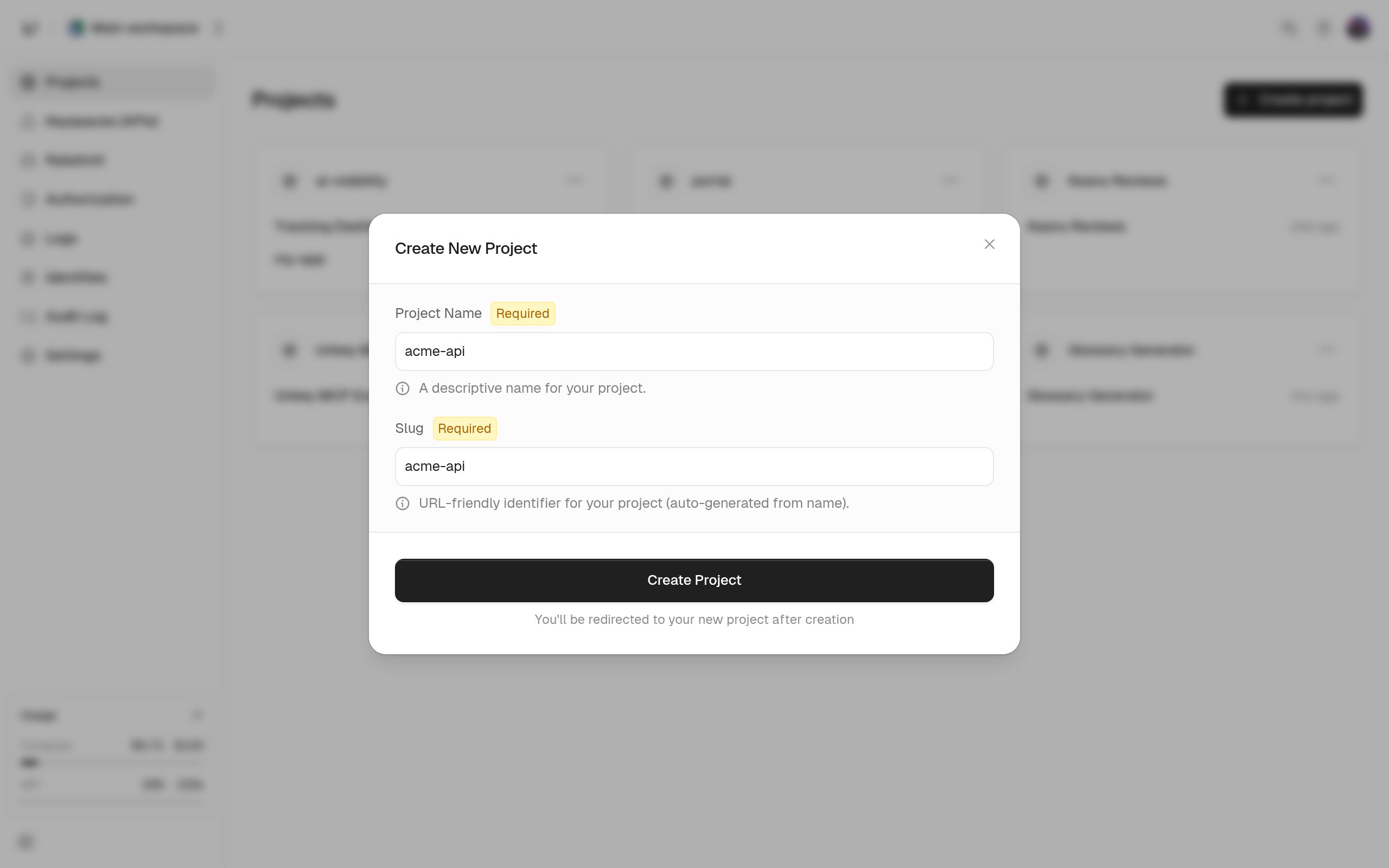
default is reserved.Create an app and connect the repository
Choose Create app. The wizard first asks for an App Name and a Slug (unique within the project), then for a source. Pick Import from GitHub.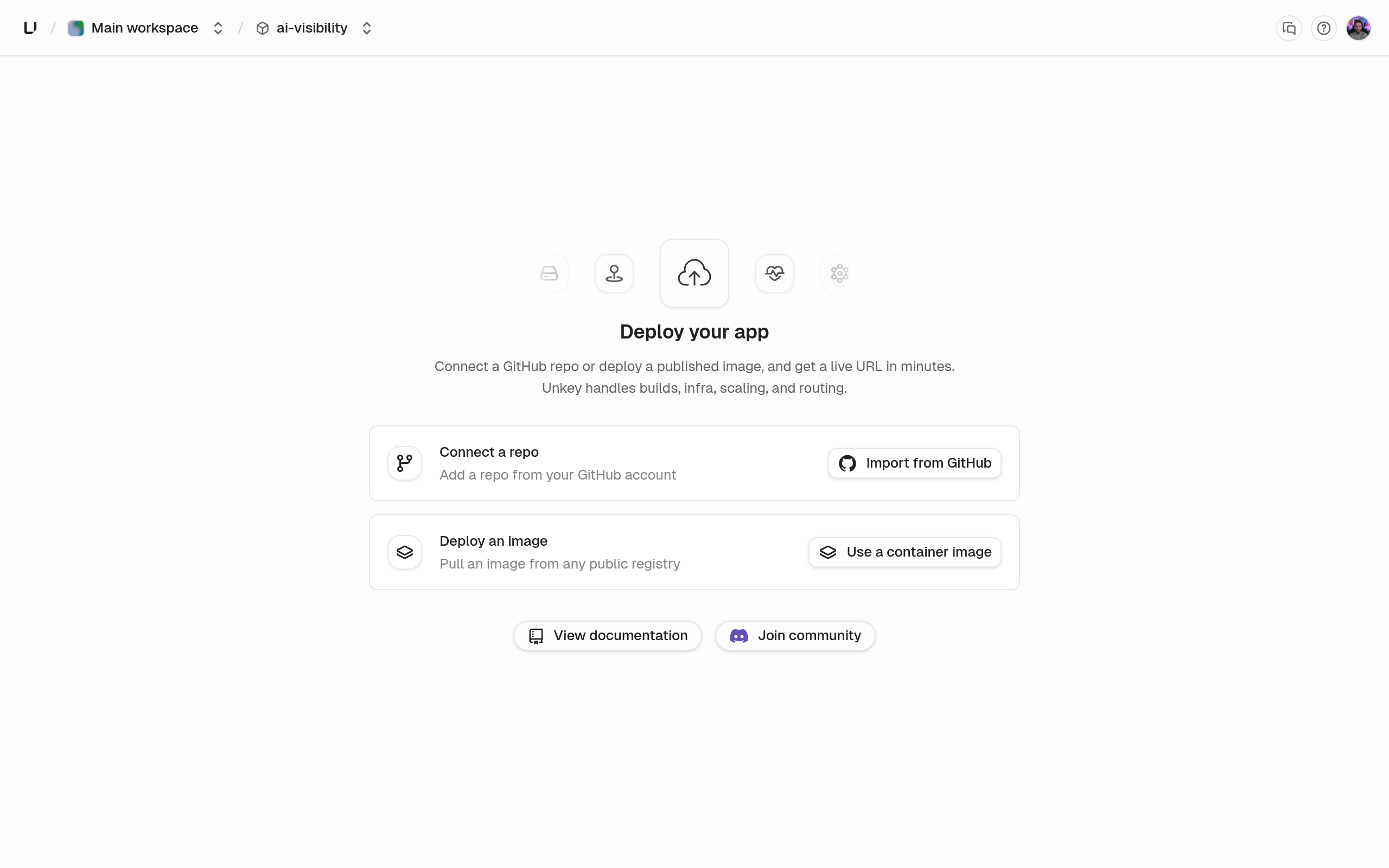
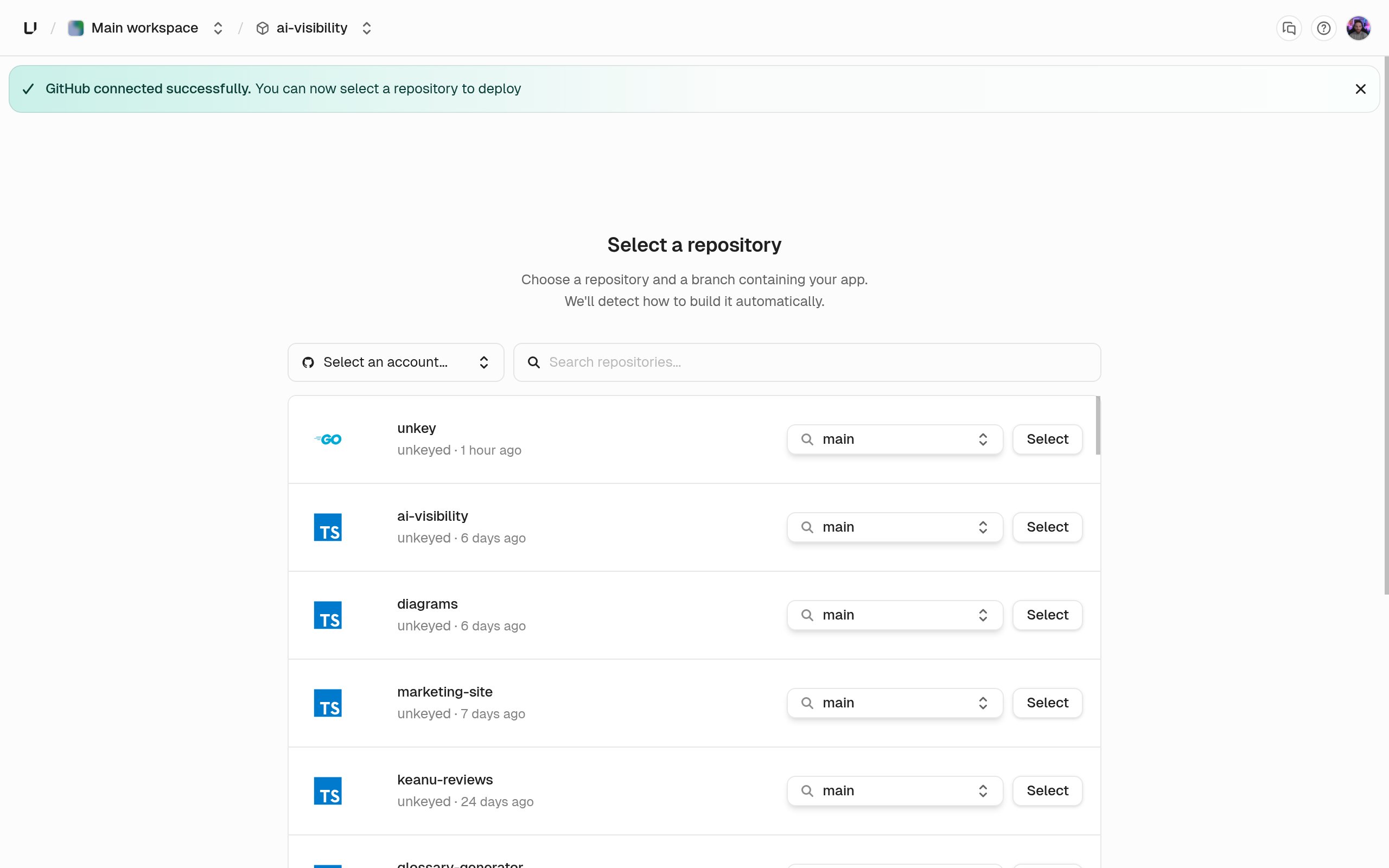
Review the build settings
The Configure deployment step shows the build settings for the new app. The defaults build most repositories without changes:
- Root directory
.: the directory Unkey builds from. Point it at a subdirectory for a monorepo. - Dockerfile automatic: with no Dockerfile set, Unkey detects your language and toolchain and builds the image for you. Pick a Dockerfile from the list to take full control of the image.
- Build command: overrides the detected build command. It’s unused when a Dockerfile is set.
- Watch paths: leave empty to deploy on every push, or add glob patterns so pushes touching only other files are recorded as skipped instead of built.
- Auto deploy for production and for preview, both on.
PORT environment variable, which Unkey sets to the configured port.Add environment variables
The Configure environment variables step is optional. Variables are scoped to an environment, so production and preview can hold different values, and you can add a variable to all environments at once. Mark secrets as sensitive to make them write-only: you can replace or delete them later but never read them back. Variables are encrypted at rest either way. You can add or change variables at any time. A change applies to the next deployment.
Deploy
Choose Deploy. The wizard creates a deployment in the production environment from the head of the app’s default branch and shows its progress. The deployment moves through 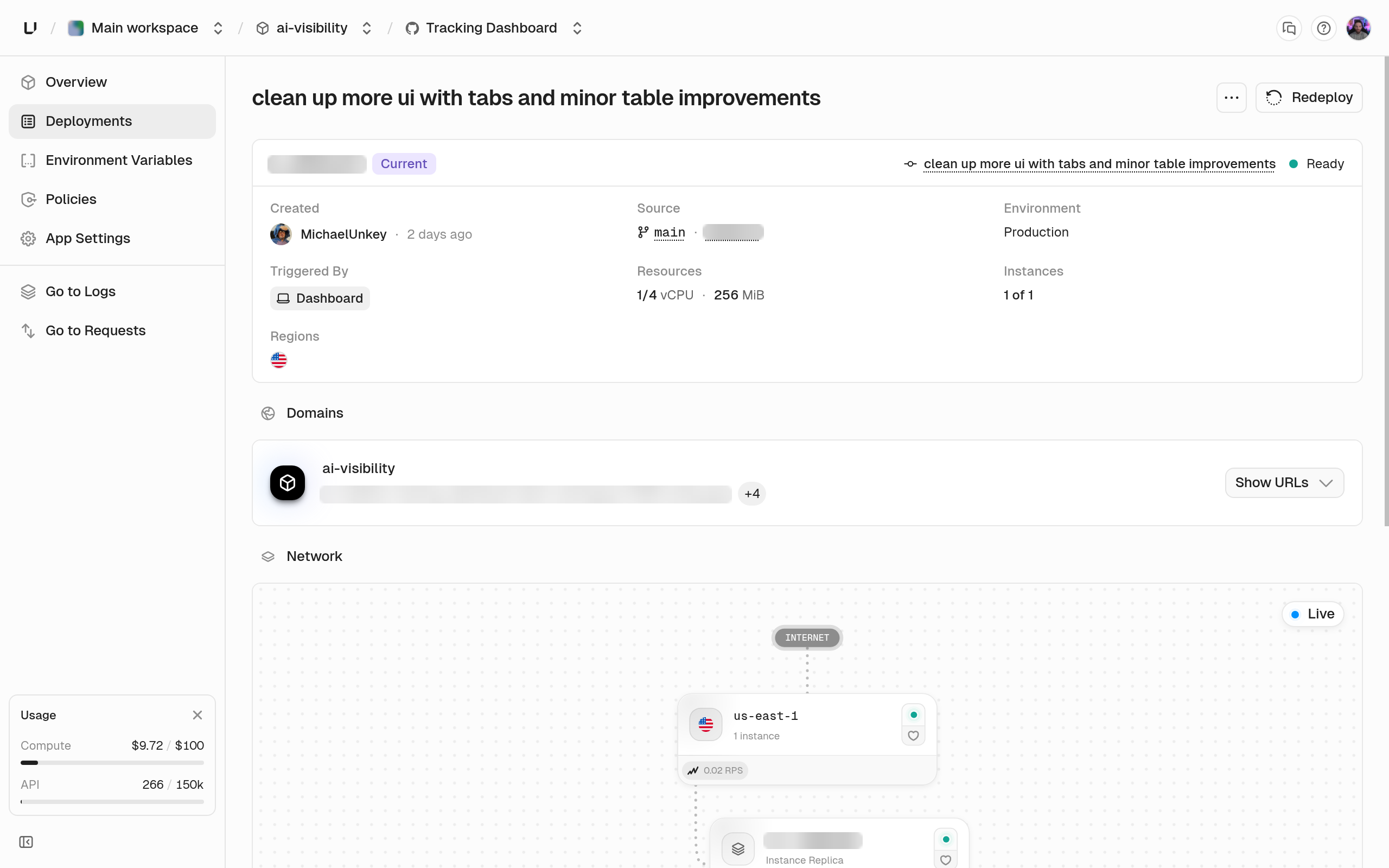
pending, starting, building, deploying, network (shown as Assigning Domains), and finalizing before it reaches ready. The build log streams while building runs. A first build waits its turn if another deployment in the workspace is running.When the status is ready the app is live on its automatic domains. With a project payments, an app api, and a workspace acme, the production deployment answers on payments-api-acme.unkey.app, with further domains for the environment, the branch, and the exact commit. If the app slug is default the domains omit it and start with payments-. The deployment detail page lists every domain.failed, the detail page shows the step that failed and an error code. Deployments lists the codes and what to change.Push again
From now on GitHub tells Unkey about every push. A push to the app’s default branch creates a production deployment, and when it reaches
ready it becomes the live deployment and the production domains move to it. A push to any other branch creates a preview deployment with its own branch domain, so every branch has a URL you can share. A pull request from a fork is held in awaiting_approval until a project member approves it, because it runs code from outside your repository.Auto deploy and watch paths decide whether a push builds at all. A push that isn’t built is recorded as skipped with the reason.Next steps
Production and preview
Promote, roll back, and what happens to older deployments.
Deployments
Every status, the build queue, and the failure codes.
Instances and autoscaling
Change CPU, memory, replicas, and health checks.
GitHub integration
Fork approval, watch paths, and what Unkey writes back to GitHub.
Add API key authentication later
When you want the gateway in front of this app to check API keys before requests reach it, create a keyspace and keys in API Management, then attach a key-auth policy to the environment. Nothing in this guide depends on it.