

PORT environment variable, which Unkey sets to the configured port (8080 unless you change it). Reference the image with a tag (ghcr.io/acme/api:v1.2.3) or a digest (ghcr.io/acme/api@sha256:...). A reference with neither pulls latest at deploy time, so which version a got depends on when you ran it.
You need a Compute plan before you can deploy. If you don’t have one yet, the dashboard asks you to pick one the first time you try (the dialog is titled Choose a Compute plan). Only a workspace admin can do that. See Compute plans for what each plan includes.
Create a project
Open Projects in the dashboard and choose Create project. An app always lives in a project, and once the project exists the dashboard takes you straight to creating the app.
Deploy from the dashboard
Choose Create app, give it a name and a slug, and on the source step pick Use a container image instead of importing from GitHub. Enter the Image reference and deploy. The wizard creates the app’s first deployment in the preview , so you can check the image before anything reaches production.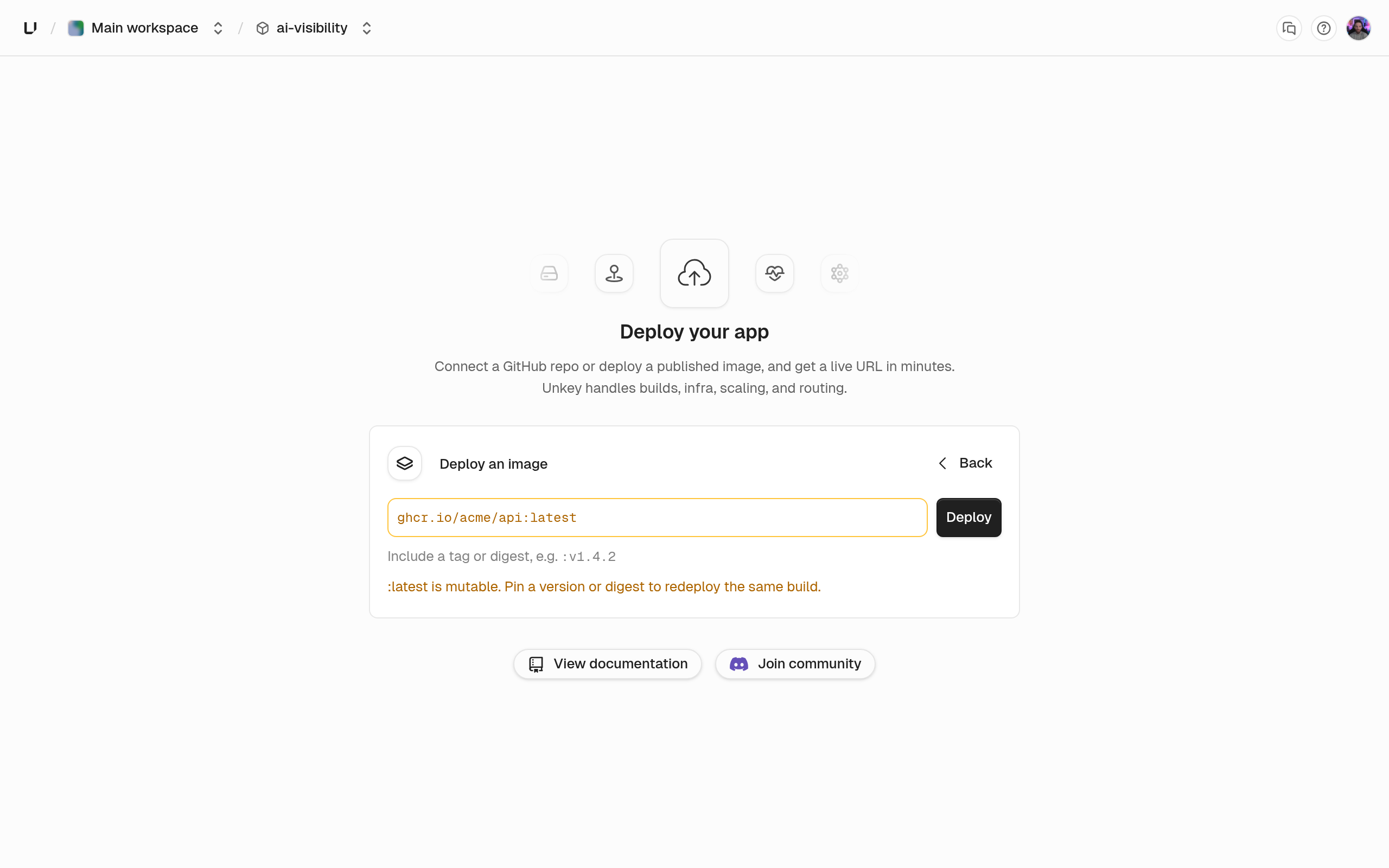
Deploy with unkey api deployments create-deployment
The Pass at most one of
unkey api commands match the public API one to one. create-deployment returns immediately with the deployment ID, and get-deployment reads its status. Both take the root key from --root-key or UNKEY_ROOT_KEY and print JSON with --output json.--oci, --git, or --deployment. Omit all three and the app deploys its configured default: its default image for an image app, its default branch for a Git app. A tag such as :latest is pinned to the exact image it points to when you deploy, so the deployment doesn’t change when the tag moves. The root key needs environment.*.create_deployment to create and environment.*.read_deployment to read. See Root keys.Wait for ready
An image deployment runs the same steps as a Git one:
pending, starting, building, deploying, network, and finalizing before ready. The building step doesn’t build anything, so it’s short. The deployment still waits its turn if another deployment in the workspace is running. A production deployment that reaches ready becomes the live one and takes over the production domains, unless the app is rolled back. A preview deployment gets its own domains. If the status is failed, the error.code says why. Deployments lists the codes.Next steps
Production and preview
Promote a deployment, roll back, and redeploy.
Deploy from GitHub
Let Unkey build and deploy on every push instead.
Instances and autoscaling
What the runtime defaults mean. Change them on Runtime settings.
Environment variables
Give the image its configuration and secrets.
Add API key authentication later
When you want the gateway in front of this app to check API keys before requests reach it, create a keyspace and keys in API Management, then attach a key-auth policy to the environment. Nothing in this guide depends on it.