

Why audit logs matter
Security investigations
When something goes wrong, trace exactly what happened and who was
responsible.
Compliance requirements
SOC 2, HIPAA, and other frameworks require audit trails for sensitive
operations.
Team visibility
Know when team members create, modify, or revoke keys, especially in shared
workspaces.
Debugging
Figure out why a key stopped working or when a permission was changed.
What’s captured
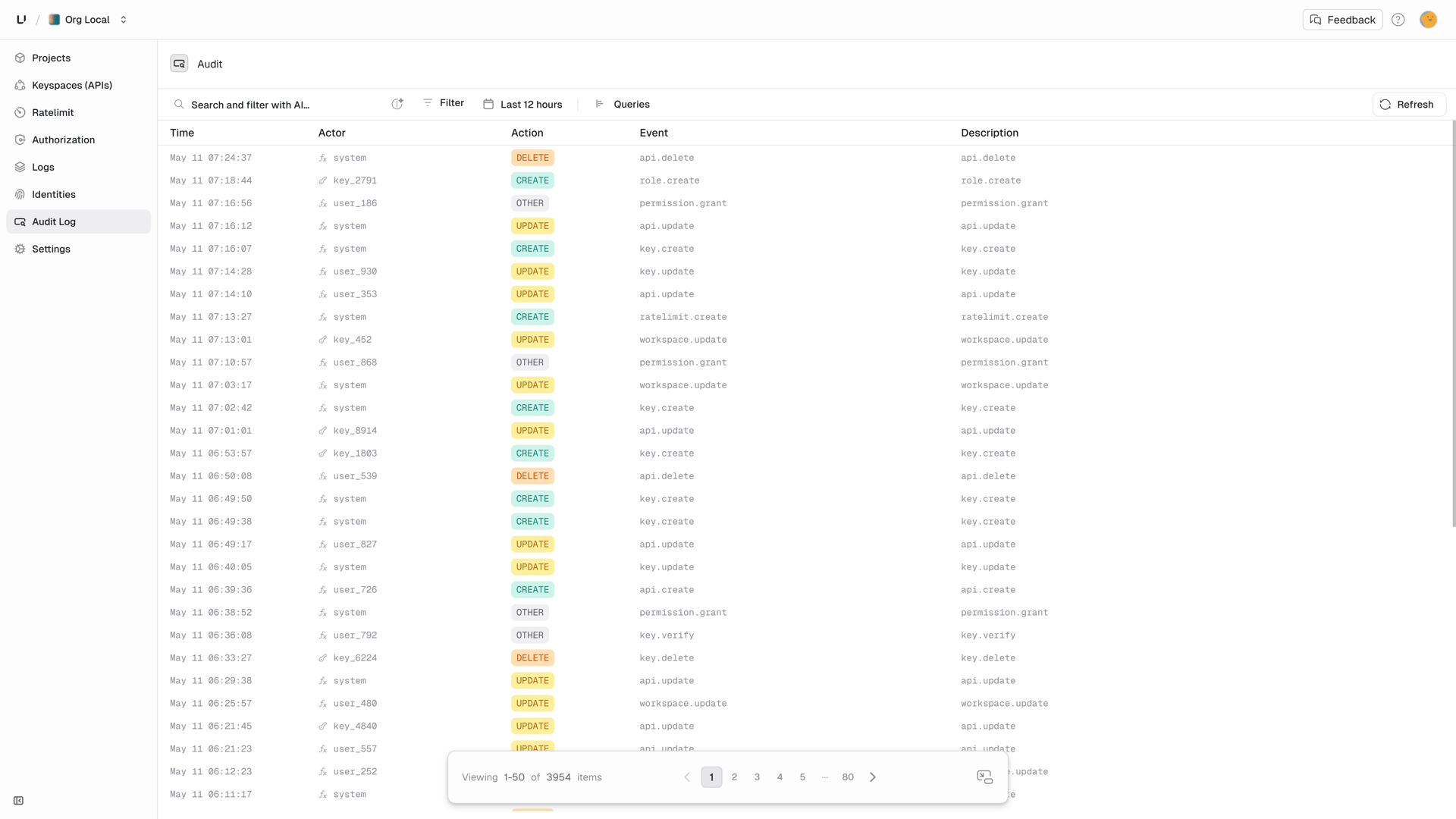
Every mutation is logged automatically:Accessing audit logs
- Sign into the Dashboard
- Click Audit Logs in the left navigation
Reading the log
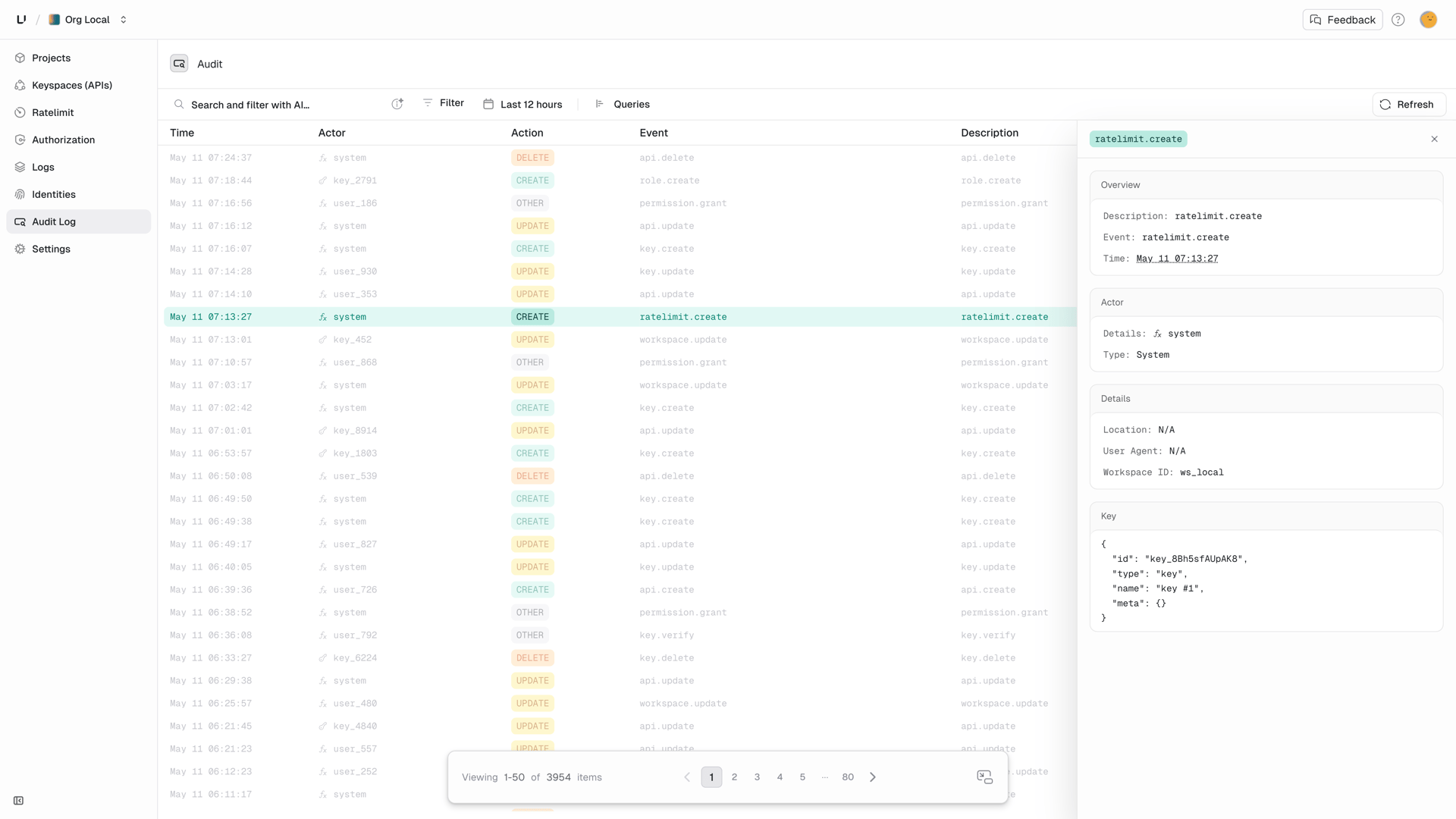
Each entry shows:
Click any row to see full details, including the complete request/response payloads:
Filtering logs
Use the filters at the top of the audit log page to narrow down:- Event type: Show only key events, permission events, etc.
- Actor: Filter by specific user or root key
- Time range: Focus on a specific period
Retention
Audit logs are retained based on your plan:
Need longer retention? Contact us about enterprise options.
Next steps
Event Types
Full list of audited events and their payloads
Security Overview
How Unkey protects your data