

What sits in a workspace
Everything on this site is scoped to a workspace: the team and roles, billing plans and limits, root keys, keyspaces and keys, and Compute projects with their apps and . A root key from one workspace can’t touch another.Slug and ID
A workspace has two identifiers. They do different jobs.string
required
The URL handle you choose when creating the workspace. It appears in every dashboard URL as
app.unkey.com/<slug>/..., must be unique across Unkey, and can’t be changed later. It’s 3 to 64 characters of lowercase letters, digits, and hyphens, and can’t start or end with a hyphen. The dashboard derives a slug from the workspace name as you type and lets you edit it before creating.string
A generated identifier prefixed with
ws_. Use it when an API call or a support request needs to name the workspace. Copy it from Settings > General. See Workspace settings.Create a workspace
Open the creation page
Go to app.unkey.com/new. Signing in with a new account lands you here automatically.
Name the workspace
Enter a name between 3 and 50 characters. The name isn’t shown to your users, so choose one your team recognizes.
Confirm the slug
The dashboard fills in a slug derived from the name. Edit it if you want a shorter handle. If the slug is already taken, the form tells you and you pick another.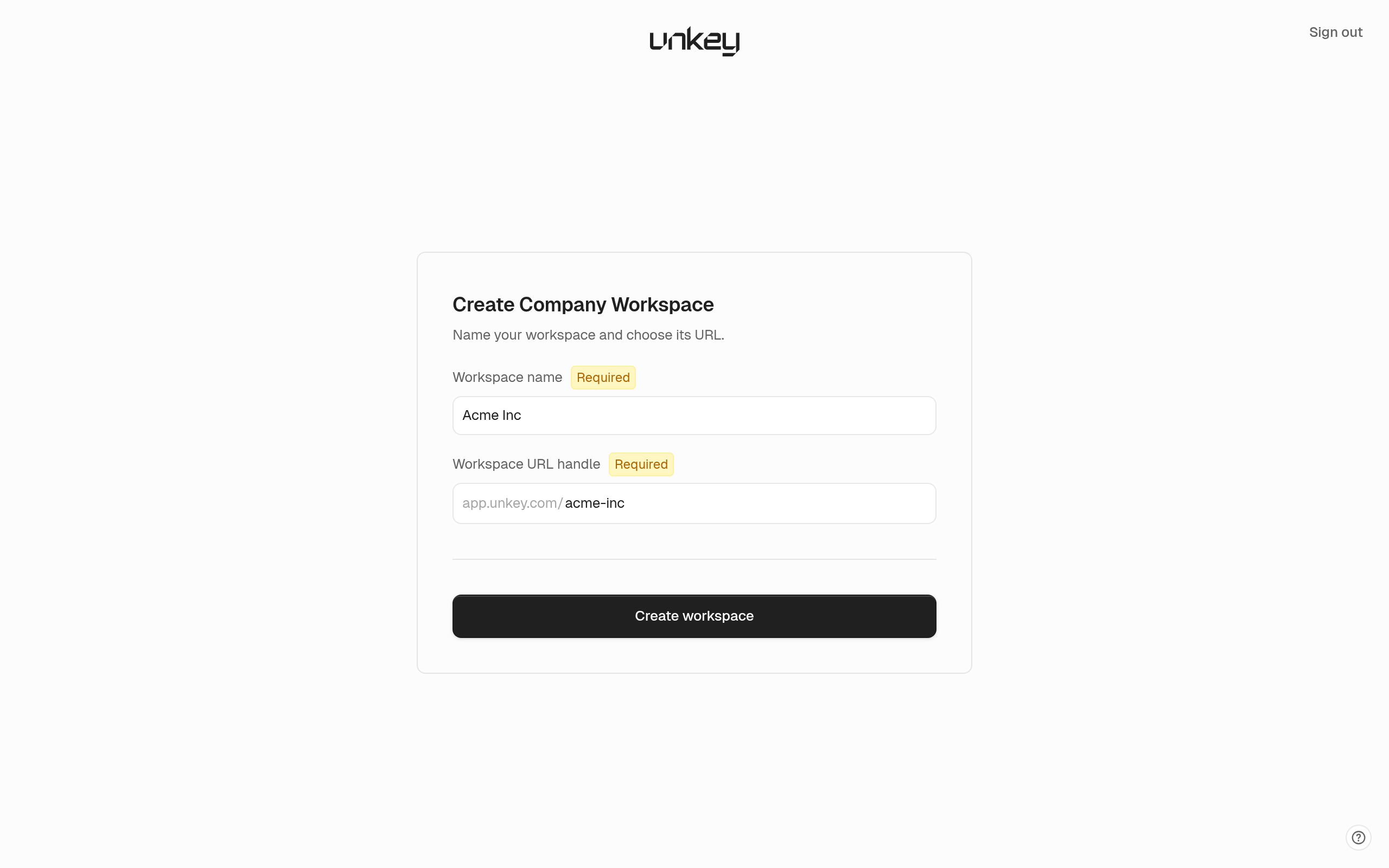
Create
Click Create workspace. The workspace starts on the free tier with the free limits and no Compute plan. You can deploy once you pick one under Plans.