

What you can protect
Protection is off until you turn it on. The one exception is the Default project we create for your workspace, which starts protected.Protect a keyspace
Open the keyspace settings
In the dashboard, open the keyspace and go to its Settings page. The Delete Protection card shows Enabled or Disabled.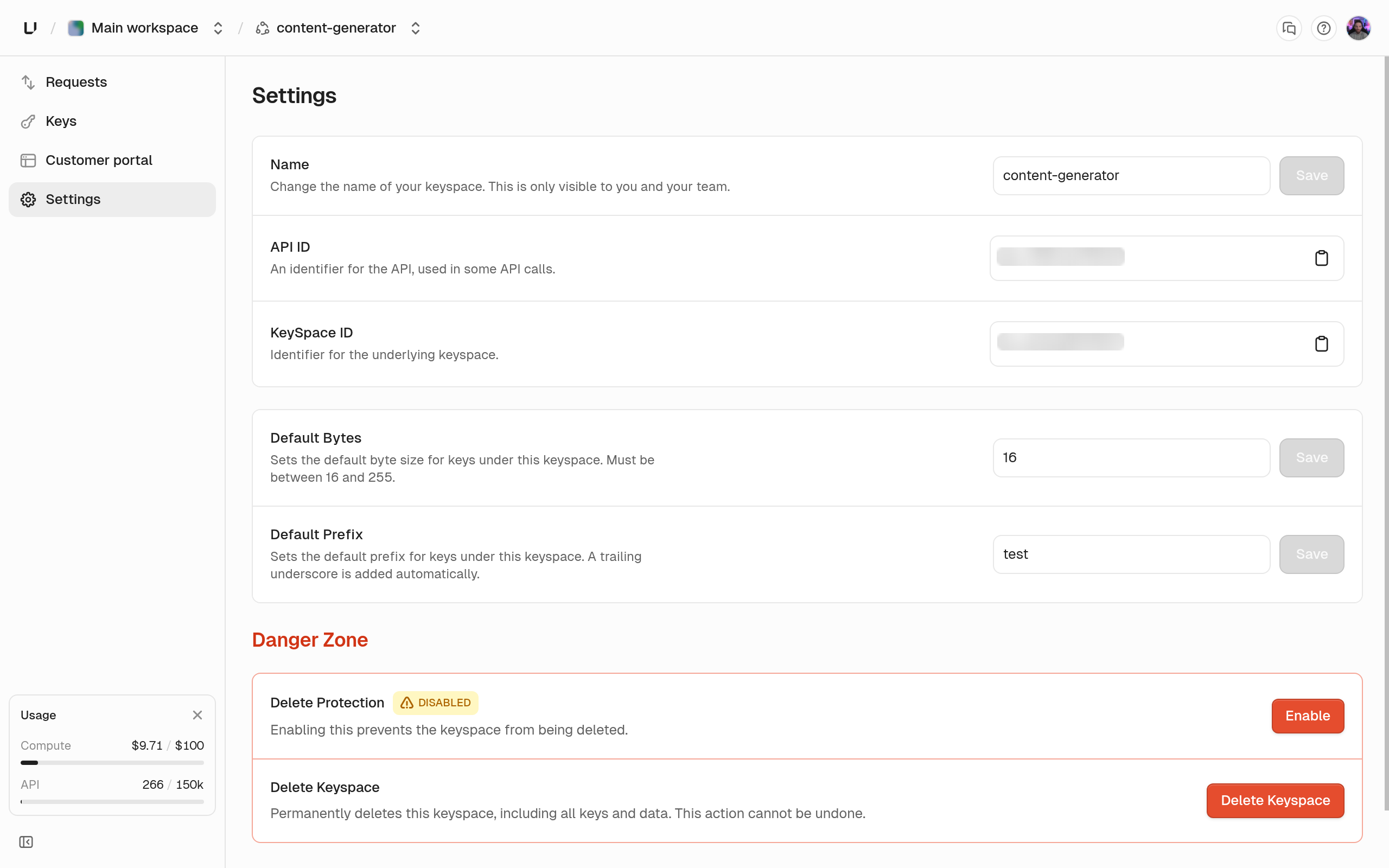
Protect an app or project
Use the CLI or the API with a root key that hasupdate_app or update_project.
unkey api projects update-project --delete-protection or projects.updateProject. To turn it off, pass --delete-protection=false or "deleteProtection": false. If you leave the field out, the current value stays, so an update that only renames the resource doesn’t clear protection. apps.getApp, projects.getProject, and the list endpoints return the current flag.
When you try to delete a protected resource
In the dashboard, the Delete action on a protected keyspace refuses with “This API has delete protection enabled. Please disable it before deleting the API.” In the API,apis.deleteApi, apps.deleteApp, and projects.deleteProject return HTTP 412 with the code err:unkey:application:protected_resource. The detail names the resource type: “This API has delete protection enabled”, “This app has delete protection enabled”, or “This project has delete protection enabled”.