

What an entry contains
Each entry has:- An event, such as
key.createorportal.session.exchange. See Audit log event types. - An actor, with a type, ID, and name. The type is
user(someone in the dashboard),rootkey(an API call),portalEndUser(one of your customers in a developer portal),github(a push or pull request on a connected repository), orsystem(Unkey itself). - The resources it touched, each with a type, ID, name, and optional details such as the fields that changed.
- The caller’s IP address and user agent, and a readable description.
- A correlation ID that groups entries from one action, such as a key creation and the permissions it attached.
unkey_mutations bucket, the only option in the dashboard’s Bucket filter.
Which actions are logged
Every create, update, and delete is logged, for keyspaces, keys, identities, roles, permissions, rate limit namespaces and overrides, portals, every Compute resource, and workspace and team changes. Reads aren’t logged, with two exceptions:key.verify when a root key calls keys.verifyKey, and ratelimit.limit when a root key checks a rate limit. Verifications by the gateway or a portal session aren’t in the audit log. They’re in analytics.
Reading the log
Open Audit Log in the dashboard sidebar. Entries are newest first. Expand one to see its resources, description, IP address, and user agent. Filter by Events, Users, Root Keys, Bucket, and time range. Press F to open the filters and Q to reopen saved filters. Every workspace role can read the log, including viewers, but only admins see keys in the Root Keys filter.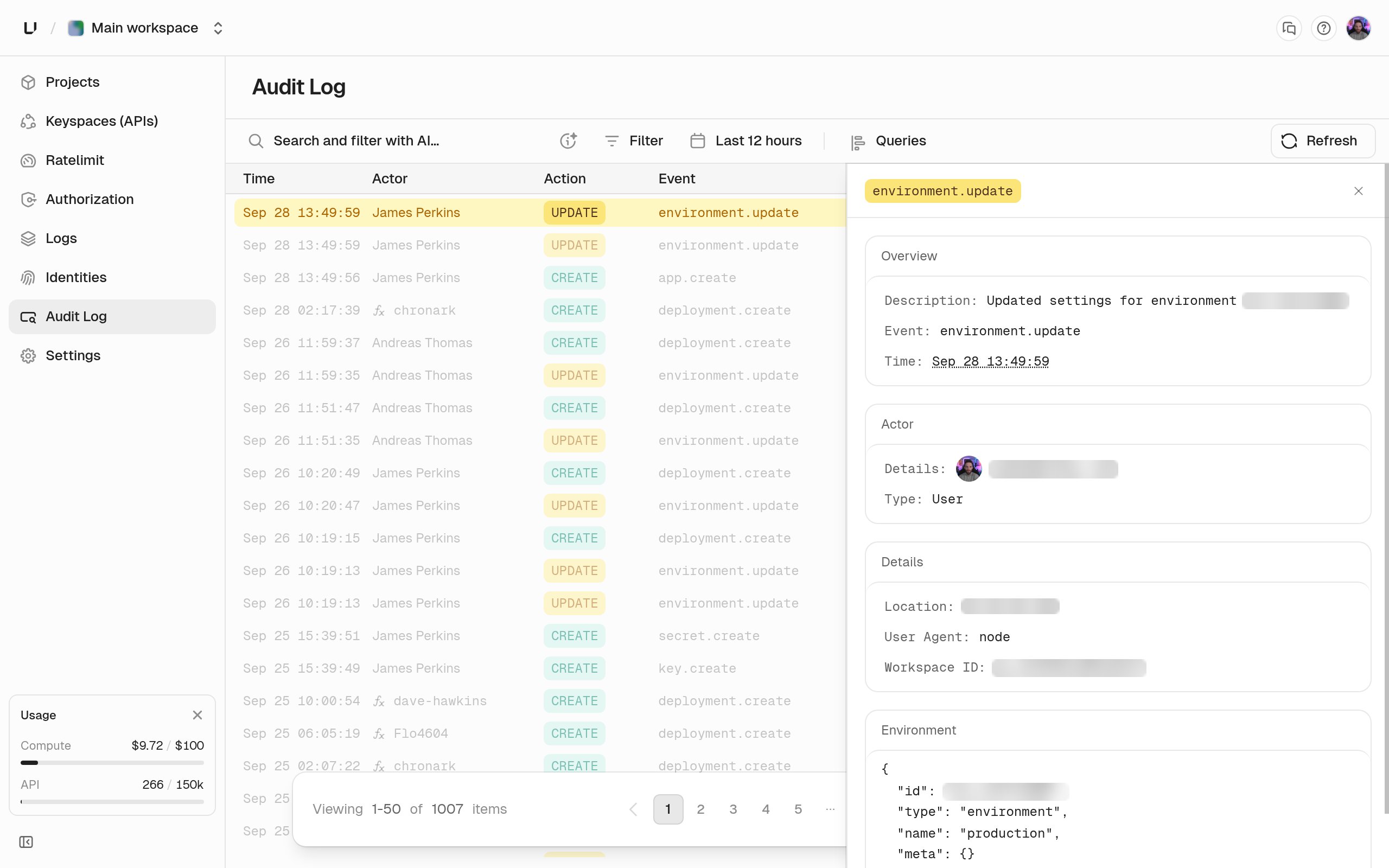
Retention
Your plan sets how long entries are kept. Check theAudit log retention row on Settings > Limits. See Limits.
No plan keeps audit logs longer than 90 days. To keep them longer, or in your own systems, stream them out with a log drain.