> ## Documentation Index
> Fetch the complete documentation index at: https://unkey.com/docs/llms.txt
> Use this file to discover all available pages before exploring further.
> ## Agent Instructions
> Unkey is two separate products. Compute builds, deploys, and runs apps behind a gateway. API Management issues API keys, enforces rate limits, manages identities and permissions, and reports usage. Say which product a page belongs to; a reader can use either without the other.
> Every Unkey API endpoint is an HTTP POST to https://api.unkey.com/v2/{service}.{procedure} with a root key in the Authorization: Bearer header. Root keys are workspace scoped.
> Error codes have the form err:{system}:{category}:{specific} and each has a page at /errors/{system}/{category}/{specific}.
> The word environment means production or preview in Compute. Rate limiting has four meanings on this site; the glossary lists them.
# Custom domains
> Serve an environment from your own domain, from DNS records to certificate.
A custom domain lets you serve an environment of your app from a hostname you own, such as `api.acme.com`. You add the domain, publish two DNS records to prove you own it, and we route it and get a certificate for it. It always serves the environment's current deployment, like the [automatic hostnames](/docs/compute/networking/automatic-domains).
## Before you start
* **Your plan must allow it.** Starter includes one custom domain, and Pro and Business have no practical limit. Going over returns [`custom_domain_limit_exceeded`](/docs/errors/unkey/limits/custom_domain_limit_exceeded). See [Compute plans](/docs/compute/get-started/plans).
* **Each name can be used once in your workspace**, so you can't attach it to two environments.
* **It must be under a domain someone can register.** `api.acme.co.uk` is fine, but `co.uk` on its own isn't. Wildcards and IP addresses aren't allowed. Unicode names work, and we store them in lowercase Punycode.
* **Port 80 must reach us as well as 443**, so we can get a certificate.
## Attach a domain
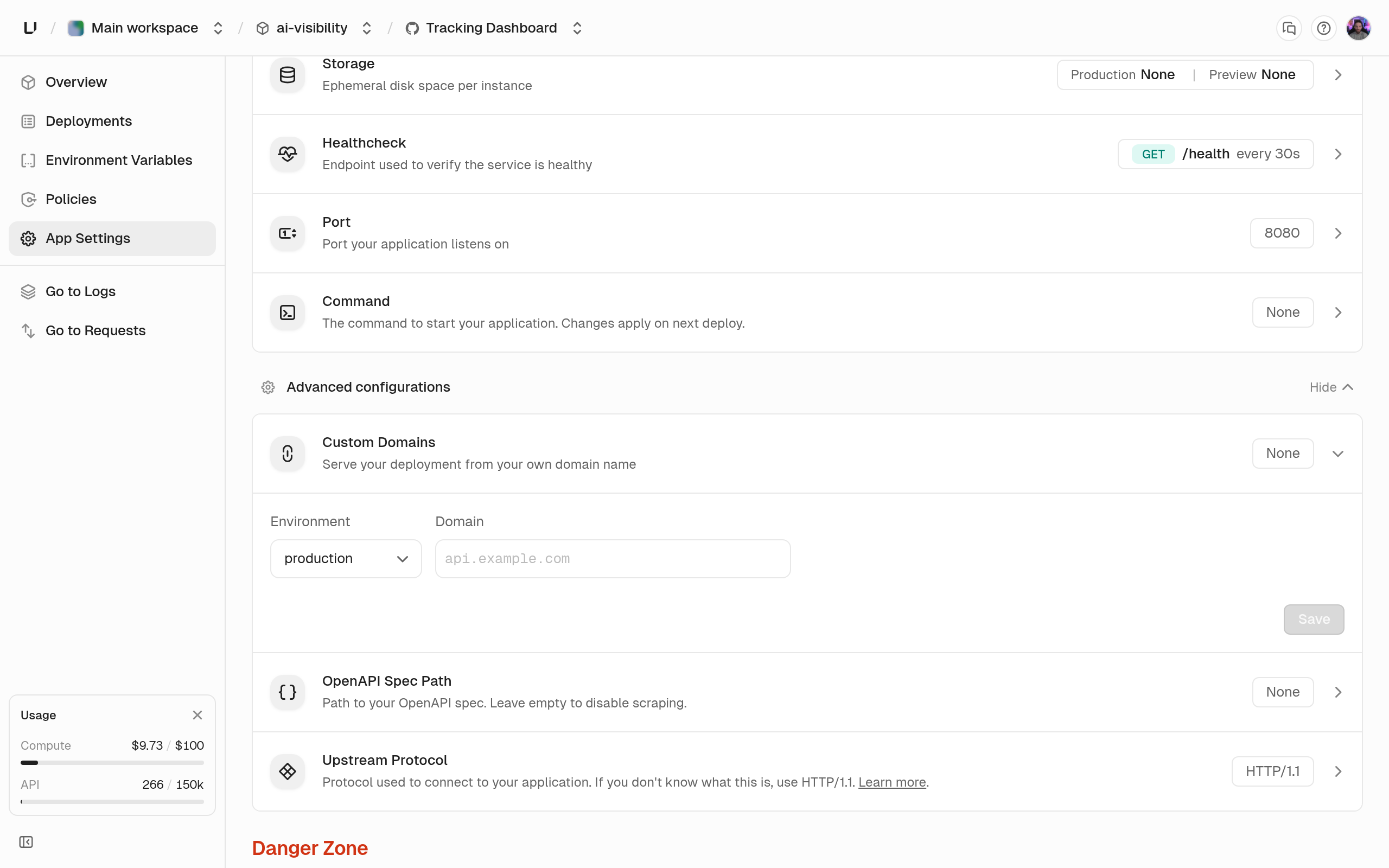 In the dashboard, open the app, go to **App Settings**, add the domain under **Custom Domains**, and pick the environment it should serve. Or use the CLI:
```bash theme={"system"}
unkey api domains create-domain --project=payments --app=api --environment=production --domain=api.acme.com
```
The API equivalent is `POST /v2/domains.createDomain` with `project`, `app`, `environment`, and `domain`. The response is the domain object, including `dnsRecords` and, when available, `domainConnect`.
We show the records to create at your DNS provider:
| Type | Name | Value | When |
| - | - | - | - |
| `CNAME` | `api.acme.com` | `<16 characters>.` | Subdomains |
| `ALIAS` | `acme.com` | the same target | Apex domains |
| `TXT` | `_unkey.api.acme.com` | `unkey-domain-verify=` | Always |
Copy the values exactly, with a TTL of 60 seconds. `ALIAS` means whatever your provider calls an alias at the apex: ALIAS, ANAME, or a flattened CNAME.
Some providers want names without the zone. In zone `acme.com`, enter `api` instead of `api.acme.com`, and `_unkey.api` instead of `_unkey.api.acme.com`. The zone itself is usually `@`.
If your DNS is hosted at Cloudflare or Vercel, you can skip the manual step. We give you a Domain Connect link (`domainConnect` in the API). Open it, approve the pre-filled records at your provider, and you're sent back to the app's settings.
We check DNS once a minute for up to 24 hours after you added the domain. The status goes from `pending` to `verifying` to `verified`. Each record also shows whether we've found it yet.
Once it's verified, we get a Let's Encrypt certificate and start serving HTTPS on the domain.
## Verification failed or is stuck
After 24 hours without the right records, the status becomes `failed` and `verificationError` says why. Fix the records, then retry. Retrying starts a new 24 hour window:
```bash theme={"system"}
unkey api domains verify-domain --domain=api.acme.com
```
Things to check:
* **Publish both records**, even for a subdomain. A subdomain passes when its CNAME points at our target. But an apex domain, a flattened CNAME, or a proxied record that hides the CNAME can only pass with the TXT record.
* **An apex domain must also resolve to an IP address** (an A or AAAA record) through the alias.
* **Values must match exactly.** We compare them character for character.
## Certificates
Certificates come from Let's Encrypt and renew automatically when they have less than 30 days left. The name must be reachable on port 80, because Let's Encrypt checks it over plain HTTP. If Let's Encrypt rate limits us, we wait and retry up to three times, then mark the certificate as failed. HTTPS on custom domains requires TLS 1.2 or later. See [Request lifecycle and headers](/docs/compute/networking/request-lifecycle).
## Move a domain from another workspace
If another workspace has already verified the name, publish the TXT record. When your verification passes, the domain moves to your workspace and is removed from the other one.
## While the app is rolled back
A custom domain normally moves to each new live deployment. While the app is rolled back, new production deployments don't go live, so your domain keeps serving the deployment you rolled back to until you promote. See [Production and preview](/docs/compute/concepts/production-and-preview).
## Remove a domain
Delete the domain, and requests to it stop reaching your app right away. Deleting the app or project also deletes its domains. Remove the DNS records yourself.
In the dashboard, open the app, go to **App Settings**, add the domain under **Custom Domains**, and pick the environment it should serve. Or use the CLI:
```bash theme={"system"}
unkey api domains create-domain --project=payments --app=api --environment=production --domain=api.acme.com
```
The API equivalent is `POST /v2/domains.createDomain` with `project`, `app`, `environment`, and `domain`. The response is the domain object, including `dnsRecords` and, when available, `domainConnect`.
We show the records to create at your DNS provider:
| Type | Name | Value | When |
| - | - | - | - |
| `CNAME` | `api.acme.com` | `<16 characters>.` | Subdomains |
| `ALIAS` | `acme.com` | the same target | Apex domains |
| `TXT` | `_unkey.api.acme.com` | `unkey-domain-verify=` | Always |
Copy the values exactly, with a TTL of 60 seconds. `ALIAS` means whatever your provider calls an alias at the apex: ALIAS, ANAME, or a flattened CNAME.
Some providers want names without the zone. In zone `acme.com`, enter `api` instead of `api.acme.com`, and `_unkey.api` instead of `_unkey.api.acme.com`. The zone itself is usually `@`.
If your DNS is hosted at Cloudflare or Vercel, you can skip the manual step. We give you a Domain Connect link (`domainConnect` in the API). Open it, approve the pre-filled records at your provider, and you're sent back to the app's settings.
We check DNS once a minute for up to 24 hours after you added the domain. The status goes from `pending` to `verifying` to `verified`. Each record also shows whether we've found it yet.
Once it's verified, we get a Let's Encrypt certificate and start serving HTTPS on the domain.
## Verification failed or is stuck
After 24 hours without the right records, the status becomes `failed` and `verificationError` says why. Fix the records, then retry. Retrying starts a new 24 hour window:
```bash theme={"system"}
unkey api domains verify-domain --domain=api.acme.com
```
Things to check:
* **Publish both records**, even for a subdomain. A subdomain passes when its CNAME points at our target. But an apex domain, a flattened CNAME, or a proxied record that hides the CNAME can only pass with the TXT record.
* **An apex domain must also resolve to an IP address** (an A or AAAA record) through the alias.
* **Values must match exactly.** We compare them character for character.
## Certificates
Certificates come from Let's Encrypt and renew automatically when they have less than 30 days left. The name must be reachable on port 80, because Let's Encrypt checks it over plain HTTP. If Let's Encrypt rate limits us, we wait and retry up to three times, then mark the certificate as failed. HTTPS on custom domains requires TLS 1.2 or later. See [Request lifecycle and headers](/docs/compute/networking/request-lifecycle).
## Move a domain from another workspace
If another workspace has already verified the name, publish the TXT record. When your verification passes, the domain moves to your workspace and is removed from the other one.
## While the app is rolled back
A custom domain normally moves to each new live deployment. While the app is rolled back, new production deployments don't go live, so your domain keeps serving the deployment you rolled back to until you promote. See [Production and preview](/docs/compute/concepts/production-and-preview).
## Remove a domain
Delete the domain, and requests to it stop reaching your app right away. Deleting the app or project also deletes its domains. Remove the DNS records yourself.