> ## Documentation Index
> Fetch the complete documentation index at: https://unkey.com/docs/llms.txt
> Use this file to discover all available pages before exploring further.
> ## Agent Instructions
> Unkey is two separate products. Compute builds, deploys, and runs apps behind a gateway. API Management issues API keys, enforces rate limits, manages identities and permissions, and reports usage. Say which product a page belongs to; a reader can use either without the other.
> Every Unkey API endpoint is an HTTP POST to https://api.unkey.com/v2/{service}.{procedure} with a root key in the Authorization: Bearer header. Root keys are workspace scoped.
> Error codes have the form err:{system}:{category}:{specific} and each has a page at /errors/{system}/{category}/{specific}.
> The word environment means production or preview in Compute. Rate limiting has four meanings on this site; the glossary lists them.
# Deploy a container image
> Deploy an image you built yourself, from the dashboard or the CLI.
An app deploys and serves traffic without any API key. This path is for images you build yourself, in CI or on your machine, and push to a registry. Unkey pulls the image and runs it. There's no build step, no repository connection, and no GitHub App. Choose it when you already have a build pipeline, when your source isn't on GitHub, or when you want to decide exactly when a version ships.
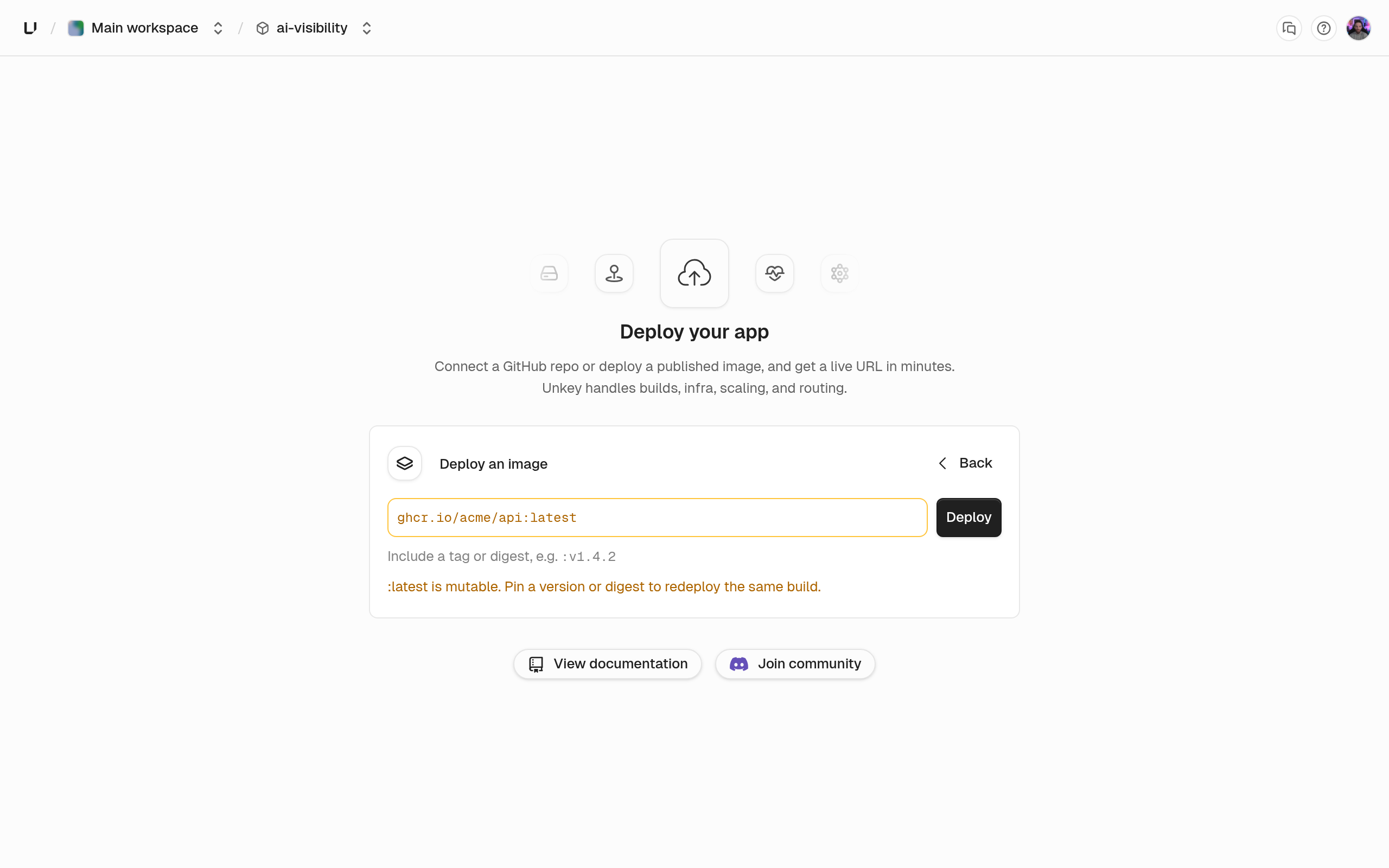
The image must be pullable without credentials, and your container must listen on the port in the `PORT` environment variable, which Unkey sets to the configured port (8080 unless you change it). Reference the image with a tag (`ghcr.io/acme/api:v1.2.3`) or a digest (`ghcr.io/acme/api@sha256:...`). A reference with neither pulls `latest` at deploy time, so which version a deployment got depends on when you ran it.
You need a Compute plan before you can deploy. If you don't have one yet, the dashboard asks you to pick one the first time you try (the dialog is titled **Choose a Compute plan**). Only a workspace admin can do that. See [Compute plans](/docs/compute/get-started/plans) for what each plan includes.
Open **Projects** in the dashboard and choose **Create project**. An app always lives in a project, and once the project exists the dashboard takes you straight to creating the app.
Choose **Create app**, give it a name and a slug, and on the source step pick **Use a container image** instead of importing from GitHub. Enter the **Image reference** and deploy. The wizard creates the app's first deployment in the preview environment, so you can check the image before anything reaches production.
 An image app has no build settings, because there's nothing to build, and its source kind is fixed: you can't later connect a repository to it. To ship a new version or reach production, open the app and choose **Create Deployment**: pick the **Environment** and enter the image reference. The dialog lists images you deployed before so you can redeploy one of them with a click.
The `unkey api` commands match the public API one to one. `create-deployment` returns immediately with the deployment ID, and `get-deployment` reads its status. Both take the root key from `--root-key` or `UNKEY_ROOT_KEY` and print JSON with `--output json`.
```bash Create the deployment theme={"system"}
unkey api deployments create-deployment \
--project=payments --app=api --environment=production \
--oci='{"image":"ghcr.io/acme/api:v1.2.3"}'
```
```bash Check its status theme={"system"}
unkey api deployments get-deployment --deployment-id=d_... --output json
```
```bash Run an earlier deployment again theme={"system"}
unkey api deployments create-deployment \
--project=payments --app=api --environment=production \
--deployment='{"deploymentId":"d_..."}'
```
Pass at most one of `--oci`, `--git`, or `--deployment`. Omit all three and the app deploys its configured default: its default image for an image app, its default branch for a Git app. A tag such as `:latest` is pinned to the exact image it points to when you deploy, so the deployment doesn't change when the tag moves. The root key needs `environment.*.create_deployment` to create and `environment.*.read_deployment` to read. See [Root keys](/docs/platform/root-keys/overview).
An image deployment runs the same steps as a Git one: `pending`, `starting`, `building`, `deploying`, `network`, and `finalizing` before `ready`. The `building` step doesn't build anything, so it's short. The deployment still waits its turn if another deployment in the workspace is running. A production deployment that reaches `ready` becomes the live one and takes over the production domains, unless the app is rolled back. A preview deployment gets its own domains. If the status is `failed`, the `error.code` says why. [Deployments](/docs/compute/concepts/deployments) lists the codes.
`unkey api deployments create-deployment` calls `POST /v3/deployments.createDeployment` with an `oci` source. `POST /v2/deployments.createDeployment` still works and takes `image.dockerImage` instead, but it's deprecated. The `POST /v2/deploy.createDeployment` that `unkey deploy` uses is internal and deprecated, and may change; call the public endpoint directly instead.
```bash Create an image deployment theme={"system"}
curl -X POST https://api.unkey.com/v3/deployments.createDeployment \
-H "Authorization: Bearer $UNKEY_ROOT_KEY" \
-H "Content-Type: application/json" \
-d '{"project":"payments","app":"api","environment":"production","oci":{"image":"ghcr.io/acme/api:v1.2.3"}}'
```
The response carries `deploymentId`. Poll `POST /v2/deployments.getDeployment` with `{"deploymentId":"..."}` until `status` is one of `ready`, `failed`, `skipped`, `superseded`, `stopped`, or `cancelled`.
## Next steps
Promote a deployment, roll back, and redeploy.
Let Unkey build and deploy on every push instead.
What the runtime defaults mean. Change them on [Runtime settings](/docs/compute/configure/runtime-settings).
Give the image its configuration and secrets.
When you want the gateway in front of this app to check API keys before requests reach it, create a keyspace and keys in API Management, then attach a key-auth policy to the environment. Nothing in this guide depends on it.
An image app has no build settings, because there's nothing to build, and its source kind is fixed: you can't later connect a repository to it. To ship a new version or reach production, open the app and choose **Create Deployment**: pick the **Environment** and enter the image reference. The dialog lists images you deployed before so you can redeploy one of them with a click.
The `unkey api` commands match the public API one to one. `create-deployment` returns immediately with the deployment ID, and `get-deployment` reads its status. Both take the root key from `--root-key` or `UNKEY_ROOT_KEY` and print JSON with `--output json`.
```bash Create the deployment theme={"system"}
unkey api deployments create-deployment \
--project=payments --app=api --environment=production \
--oci='{"image":"ghcr.io/acme/api:v1.2.3"}'
```
```bash Check its status theme={"system"}
unkey api deployments get-deployment --deployment-id=d_... --output json
```
```bash Run an earlier deployment again theme={"system"}
unkey api deployments create-deployment \
--project=payments --app=api --environment=production \
--deployment='{"deploymentId":"d_..."}'
```
Pass at most one of `--oci`, `--git`, or `--deployment`. Omit all three and the app deploys its configured default: its default image for an image app, its default branch for a Git app. A tag such as `:latest` is pinned to the exact image it points to when you deploy, so the deployment doesn't change when the tag moves. The root key needs `environment.*.create_deployment` to create and `environment.*.read_deployment` to read. See [Root keys](/docs/platform/root-keys/overview).
An image deployment runs the same steps as a Git one: `pending`, `starting`, `building`, `deploying`, `network`, and `finalizing` before `ready`. The `building` step doesn't build anything, so it's short. The deployment still waits its turn if another deployment in the workspace is running. A production deployment that reaches `ready` becomes the live one and takes over the production domains, unless the app is rolled back. A preview deployment gets its own domains. If the status is `failed`, the `error.code` says why. [Deployments](/docs/compute/concepts/deployments) lists the codes.
`unkey api deployments create-deployment` calls `POST /v3/deployments.createDeployment` with an `oci` source. `POST /v2/deployments.createDeployment` still works and takes `image.dockerImage` instead, but it's deprecated. The `POST /v2/deploy.createDeployment` that `unkey deploy` uses is internal and deprecated, and may change; call the public endpoint directly instead.
```bash Create an image deployment theme={"system"}
curl -X POST https://api.unkey.com/v3/deployments.createDeployment \
-H "Authorization: Bearer $UNKEY_ROOT_KEY" \
-H "Content-Type: application/json" \
-d '{"project":"payments","app":"api","environment":"production","oci":{"image":"ghcr.io/acme/api:v1.2.3"}}'
```
The response carries `deploymentId`. Poll `POST /v2/deployments.getDeployment` with `{"deploymentId":"..."}` until `status` is one of `ready`, `failed`, `skipped`, `superseded`, `stopped`, or `cancelled`.
## Next steps
Promote a deployment, roll back, and redeploy.
Let Unkey build and deploy on every push instead.
What the runtime defaults mean. Change them on [Runtime settings](/docs/compute/configure/runtime-settings).
Give the image its configuration and secrets.
When you want the gateway in front of this app to check API keys before requests reach it, create a keyspace and keys in API Management, then attach a key-auth policy to the environment. Nothing in this guide depends on it.