> ## Documentation Index
> Fetch the complete documentation index at: https://unkey.com/docs/llms.txt
> Use this file to discover all available pages before exploring further.
> ## Agent Instructions
> Unkey is two separate products. Compute builds, deploys, and runs apps behind a gateway. API Management issues API keys, enforces rate limits, manages identities and permissions, and reports usage. Say which product a page belongs to; a reader can use either without the other.
> Every Unkey API endpoint is an HTTP POST to https://api.unkey.com/v2/{service}.{procedure} with a root key in the Authorization: Bearer header. Root keys are workspace scoped.
> Error codes have the form err:{system}:{category}:{specific} and each has a page at /errors/{system}/{category}/{specific}.
> The word environment means production or preview in Compute. Rate limiting has four meanings on this site; the glossary lists them.
# Environment variables
> Give your app configuration and secrets that are encrypted and scoped per environment.
Environment variables give your app configuration and secrets, both while it builds and while it runs. Each variable belongs to one environment, so production and preview can have different values for `DATABASE_URL`. Every value is encrypted at rest.
## Add variables in the dashboard
1. Open the app and go to **Environment Variables**.
2. Click **Add Environment Variable**.
3. Enter one or more key-value pairs. To import a `.env` file, drop it on the page, pick it with the file button, or paste its contents into a value field.
4. Pick the target environment, or **All Environments** to set the same value everywhere.
5. Turn on **Sensitive** for secrets, and add a description if you like.
6. Save, then redeploy. See [When a change takes effect](#when-a-change-takes-effect).
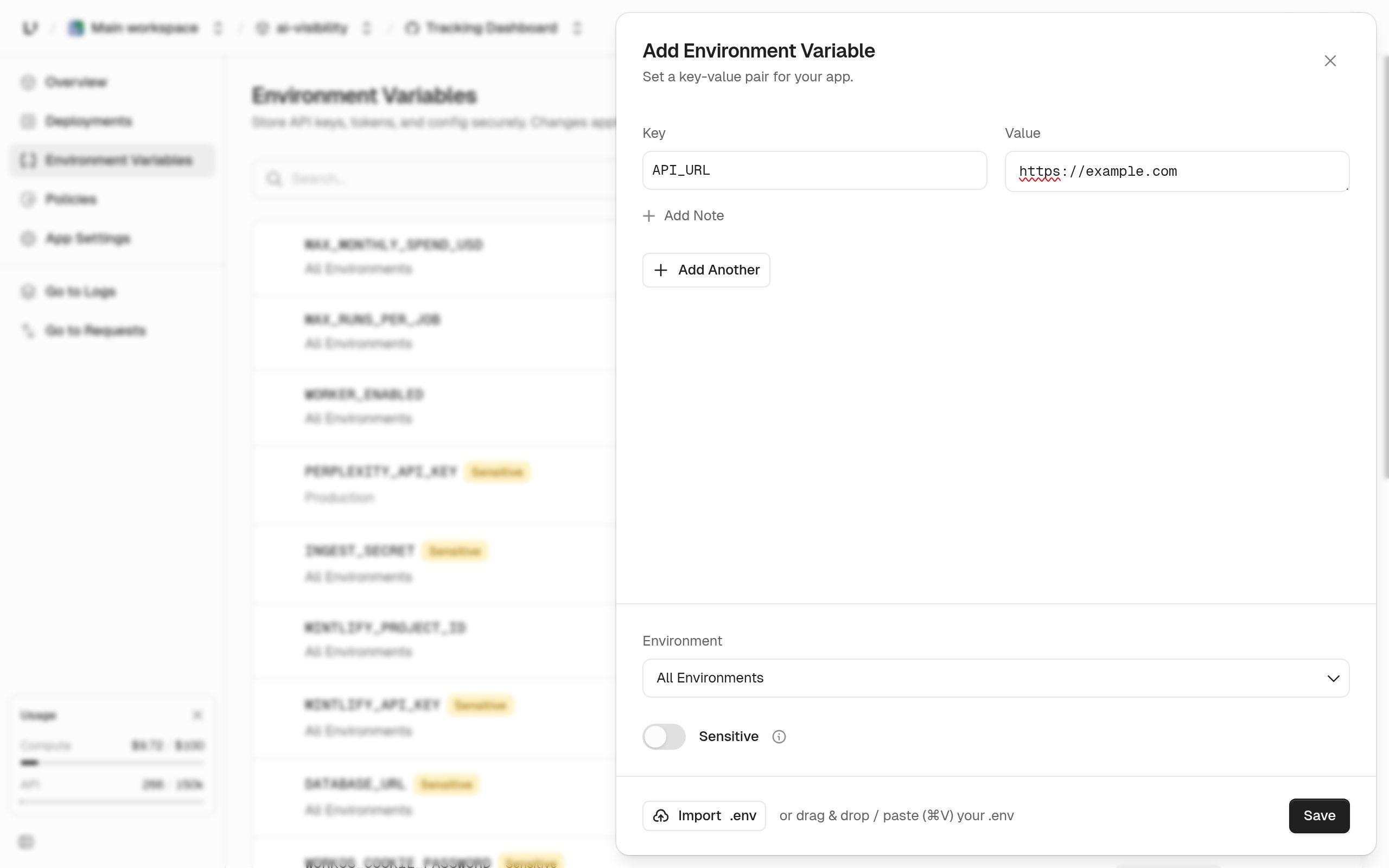 The `.env` import skips comments, strips surrounding quotes, and handles multi-line values such as PEM keys. If a key appears twice in the file, the last one wins. Keys that already exist in the target environment are flagged with "Variable already exists in this environment". Unsaved entries are lost if you reload the page.
The list can be filtered by environment, searched, and sorted by name or last update.
## Recoverable or write-only
Every variable is either `recoverable` or `writeonly`. Both are encrypted the same way. The difference is whether you can ever see the value again:
* **`recoverable`**: shown in the dashboard and returned by `environments.listEnvironmentVariables`. Use it for configuration you want to check later.
* **`writeonly`**: never shown or returned. You can only replace or delete it. Use it for API keys and other credentials.
The dashboard's **Sensitive** toggle makes a variable `writeonly`, with the note "Permanently hides values after saving. Use for API keys and secrets." In the API, `writeonly` is the default.
## Rename, mark sensitive, or delete
These actions are only in the dashboard:
* **Mark as sensitive** turns selected `recoverable` variables into `writeonly`. This can't be undone.
* **Rename** changes a key in every environment that has it. It fails if the new name is already used in any of them, and it isn't available for sensitive variables.
* **Delete** removes a variable from one environment or from all of them.
## When a change takes effect
A deployment keeps the variables it was created with, for its build and its instances. Editing a variable doesn't change anything that's already running. To apply a change, push or redeploy. The dashboard shows a redeploy banner after an edit.
## Set variables with the API
`environments.setEnvironmentVariables` creates or overwrites the variables you send, in one atomic call: if any variable is invalid, nothing changes. Variables you don't send stay as they are.
An existing key is fully overwritten. If you leave out `description` or `kind`, they reset to empty and `writeonly`.
```bash Change one variable and leave the rest theme={"system"}
curl -X POST https://api.unkey.com/v2/environments.setEnvironmentVariables \
-H "Authorization: Bearer $UNKEY_ROOT_KEY" \
-H "Content-Type: application/json" \
-d '{
"project": "payments",
"app": "api",
"environment": "production",
"variables": [
{ "key": "LOG_LEVEL", "value": "info", "kind": "recoverable", "description": "Log verbosity" }
]
}'
```
To replace the whole set, add `prune: true`. Every variable not in your list is deleted. `prune: true` with an empty list deletes them all.
`environments.removeEnvironmentVariables` deletes the keys you name, and ignores keys that don't exist. `environments.listEnvironmentVariables` returns each variable's `key`, `kind`, `createdAt`, and `description`, plus `value` for `recoverable` ones only.
## Limits
| Rule | Limit |
| - | - |
| Key | 1 to 256 characters matching `^[A-Za-z_][A-Za-z0-9_]*$`: letters, digits, and underscores, not starting with a digit. |
| Value | 1 to 16384 bytes of UTF-8. Multibyte characters count as more than one byte. Newlines inside the value are kept. The dashboard trims surrounding whitespace and rejects carriage returns. |
| Description | Up to 255 characters, optional. |
| Variables per API call | Up to 50 in one `setEnvironmentVariables` or `removeEnvironmentVariables` call. |
| Duplicate keys in one call | Rejected with `400`. |
There's no limit on how many variables an environment can have.
## Variables Unkey injects
At build time, your variables are available as described in [Build-time secrets](/docs/compute/build/build-secrets). At run time, they're set as environment variables in each instance, along with these:
| Variable | Value |
| - | - |
| `PORT` | The environment's configured port. Your app must listen on it. |
| `UNKEY_DEPLOYMENT_ID` | The deployment's ID. |
| `UNKEY_ENVIRONMENT_SLUG` | `production` or `preview`. |
| `UNKEY_REGION` | The region the instance runs in. |
| `UNKEY_GIT_COMMIT_SHA` | The commit the deployment was built from. Empty for image deployments. |
| `UNKEY_GIT_BRANCH` | The branch of that commit. Empty for image deployments. |
| `UNKEY_GIT_REPO` | The repository as `owner/repo`. Empty for image deployments. |
| `UNKEY_GIT_COMMIT_MESSAGE` | The commit message. Empty for image deployments. |
| `UNKEY_INSTANCE_ID` | The instance's own ID. |
| `UNKEY_EPHEMERAL_DISK_PATH` | `/data`, only when the environment has ephemeral disk. |
If one of your variables has the same name as one of these, ours wins. `KUBERNETES_SERVICE_HOST` and the other `KUBERNETES_*` variables some libraries look for are set to empty strings.
## Next steps
Use variables during the build without baking them into layers.
The port and disk settings behind `PORT` and `UNKEY_EPHEMERAL_DISK_PATH`.
The `.env` import skips comments, strips surrounding quotes, and handles multi-line values such as PEM keys. If a key appears twice in the file, the last one wins. Keys that already exist in the target environment are flagged with "Variable already exists in this environment". Unsaved entries are lost if you reload the page.
The list can be filtered by environment, searched, and sorted by name or last update.
## Recoverable or write-only
Every variable is either `recoverable` or `writeonly`. Both are encrypted the same way. The difference is whether you can ever see the value again:
* **`recoverable`**: shown in the dashboard and returned by `environments.listEnvironmentVariables`. Use it for configuration you want to check later.
* **`writeonly`**: never shown or returned. You can only replace or delete it. Use it for API keys and other credentials.
The dashboard's **Sensitive** toggle makes a variable `writeonly`, with the note "Permanently hides values after saving. Use for API keys and secrets." In the API, `writeonly` is the default.
## Rename, mark sensitive, or delete
These actions are only in the dashboard:
* **Mark as sensitive** turns selected `recoverable` variables into `writeonly`. This can't be undone.
* **Rename** changes a key in every environment that has it. It fails if the new name is already used in any of them, and it isn't available for sensitive variables.
* **Delete** removes a variable from one environment or from all of them.
## When a change takes effect
A deployment keeps the variables it was created with, for its build and its instances. Editing a variable doesn't change anything that's already running. To apply a change, push or redeploy. The dashboard shows a redeploy banner after an edit.
## Set variables with the API
`environments.setEnvironmentVariables` creates or overwrites the variables you send, in one atomic call: if any variable is invalid, nothing changes. Variables you don't send stay as they are.
An existing key is fully overwritten. If you leave out `description` or `kind`, they reset to empty and `writeonly`.
```bash Change one variable and leave the rest theme={"system"}
curl -X POST https://api.unkey.com/v2/environments.setEnvironmentVariables \
-H "Authorization: Bearer $UNKEY_ROOT_KEY" \
-H "Content-Type: application/json" \
-d '{
"project": "payments",
"app": "api",
"environment": "production",
"variables": [
{ "key": "LOG_LEVEL", "value": "info", "kind": "recoverable", "description": "Log verbosity" }
]
}'
```
To replace the whole set, add `prune: true`. Every variable not in your list is deleted. `prune: true` with an empty list deletes them all.
`environments.removeEnvironmentVariables` deletes the keys you name, and ignores keys that don't exist. `environments.listEnvironmentVariables` returns each variable's `key`, `kind`, `createdAt`, and `description`, plus `value` for `recoverable` ones only.
## Limits
| Rule | Limit |
| - | - |
| Key | 1 to 256 characters matching `^[A-Za-z_][A-Za-z0-9_]*$`: letters, digits, and underscores, not starting with a digit. |
| Value | 1 to 16384 bytes of UTF-8. Multibyte characters count as more than one byte. Newlines inside the value are kept. The dashboard trims surrounding whitespace and rejects carriage returns. |
| Description | Up to 255 characters, optional. |
| Variables per API call | Up to 50 in one `setEnvironmentVariables` or `removeEnvironmentVariables` call. |
| Duplicate keys in one call | Rejected with `400`. |
There's no limit on how many variables an environment can have.
## Variables Unkey injects
At build time, your variables are available as described in [Build-time secrets](/docs/compute/build/build-secrets). At run time, they're set as environment variables in each instance, along with these:
| Variable | Value |
| - | - |
| `PORT` | The environment's configured port. Your app must listen on it. |
| `UNKEY_DEPLOYMENT_ID` | The deployment's ID. |
| `UNKEY_ENVIRONMENT_SLUG` | `production` or `preview`. |
| `UNKEY_REGION` | The region the instance runs in. |
| `UNKEY_GIT_COMMIT_SHA` | The commit the deployment was built from. Empty for image deployments. |
| `UNKEY_GIT_BRANCH` | The branch of that commit. Empty for image deployments. |
| `UNKEY_GIT_REPO` | The repository as `owner/repo`. Empty for image deployments. |
| `UNKEY_GIT_COMMIT_MESSAGE` | The commit message. Empty for image deployments. |
| `UNKEY_INSTANCE_ID` | The instance's own ID. |
| `UNKEY_EPHEMERAL_DISK_PATH` | `/data`, only when the environment has ephemeral disk. |
If one of your variables has the same name as one of these, ours wins. `KUBERNETES_SERVICE_HOST` and the other `KUBERNETES_*` variables some libraries look for are set to empty strings.
## Next steps
Use variables during the build without baking them into layers.
The port and disk settings behind `PORT` and `UNKEY_EPHEMERAL_DISK_PATH`.